Quick picks
 Best for scanningPhoto Scan App by Photomyne
 Best one-time purchase scannerPhoto Scan Plus
 Best for repairRemini
 Best for colorColorize
The apps, compared
- 01
Photo Scan App by Photomyne
Photomyne LTD
Best for: Step 1: scanning prints, slides and negatives
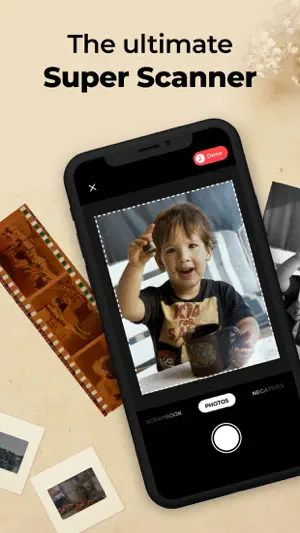
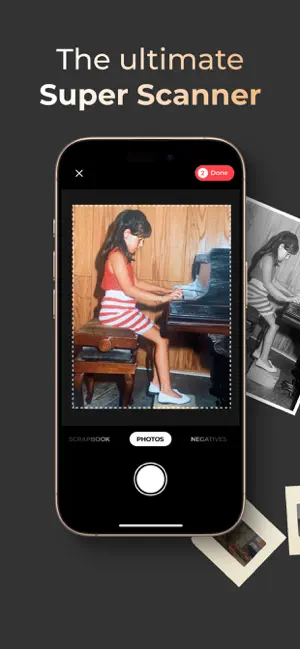
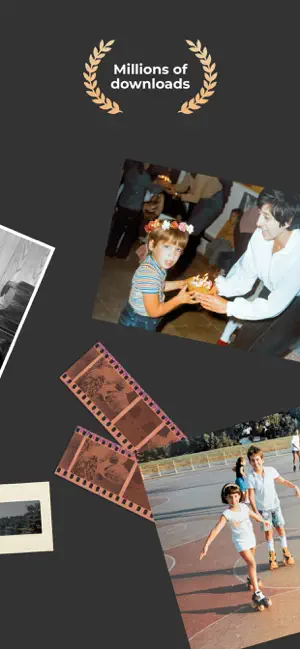
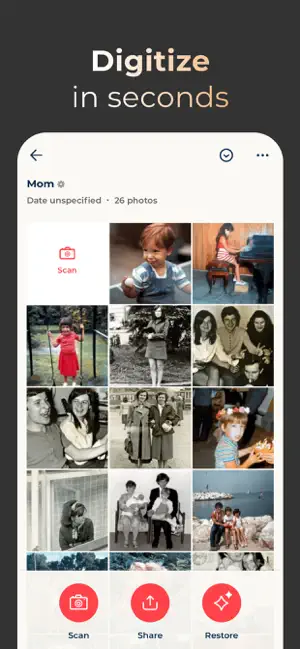
Photomyne scans printed photos, slides, negatives and keepsakes into a digital library. Its listing offers a free trial of the full membership before you decide.
- Scans prints, slides and negatives
- Restoring and organizing included
- Free trial of the membership
- The full experience is a membership after the trial
- 02
Photo Scan Plus
Photomyne LTD
Best for: Step 1, if you prefer to pay once
Photo Scan Plus is the paid, one-time purchase version of Photomyne. Its listing says it includes unlimited scanning, editing, saving and sharing on your device.
- One-time purchase
- Unlimited scanning on device
- Same scanner as Photomyne
- Costs $1.99 up front
- 03
Remini - AI Photo Enhancer
BENDING SPOONS OPERATIONS SPA
Best for: Step 2: repairing blur and damage
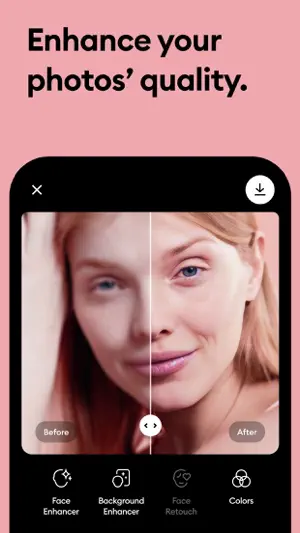
Remini sharpens grainy, blurry, damaged or low-resolution photos in one tap, according to its listing.
- One-tap enhancement
- Fixes blur and damage
- 04
Colorize - Color to Old Photos
Photomyne LTD
Best for: Step 3: adding color to black-and-white photos
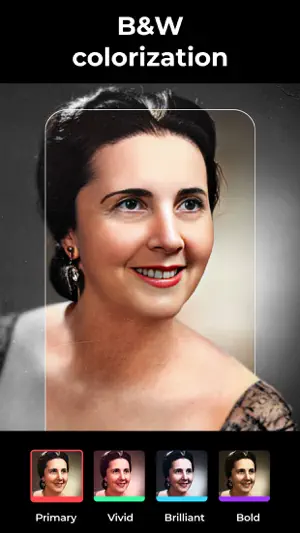
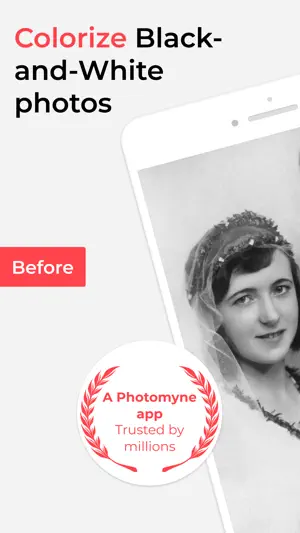
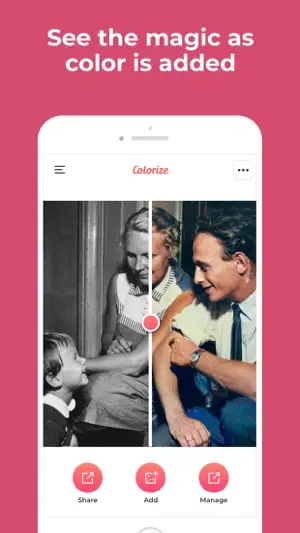
Colorize by Photomyne adds color to a black-and-white photo with one tap.
- One-tap colorization
- From the makers of Photomyne


How we chose
- Scanning apps: how many prints they capture at once and how they crop
- Restore and colorize apps: ratings and what the listing says they fix
- One-time price versus membership, where the listing states it
Descriptions come from each app's own App Store listing. Ratings, prices and update dates are from the US App Store on Oct 29, 2026, and may have changed since. App icons and screenshots belong to their developers and are shown to help you recognize each app. Nobody paid to be in this guide.
Tips
- 1. Scan everything first
- Scan the whole album in one session with even light and no glare. Restoring is quicker once all the files are on your phone.
- 2. Restore the ones that matter
- Repair the photos you plan to share or print. Light enhancement is enough for most; heavy repair is for damaged favorites.
- 3. Colorize last, keep originals
- Colorize after repairing, and keep the original scans in a separate album as your archive.
Questions
Is a phone scan good enough?
For sharing and most prints up to 5x7 inches, yes. For large prints or archiving negatives, a flatbed or film scanner still captures more detail.
Should I scan or photograph the print?
A scanning app is easier because it finds the edges, crops and straightens each print, and can capture several at once.